
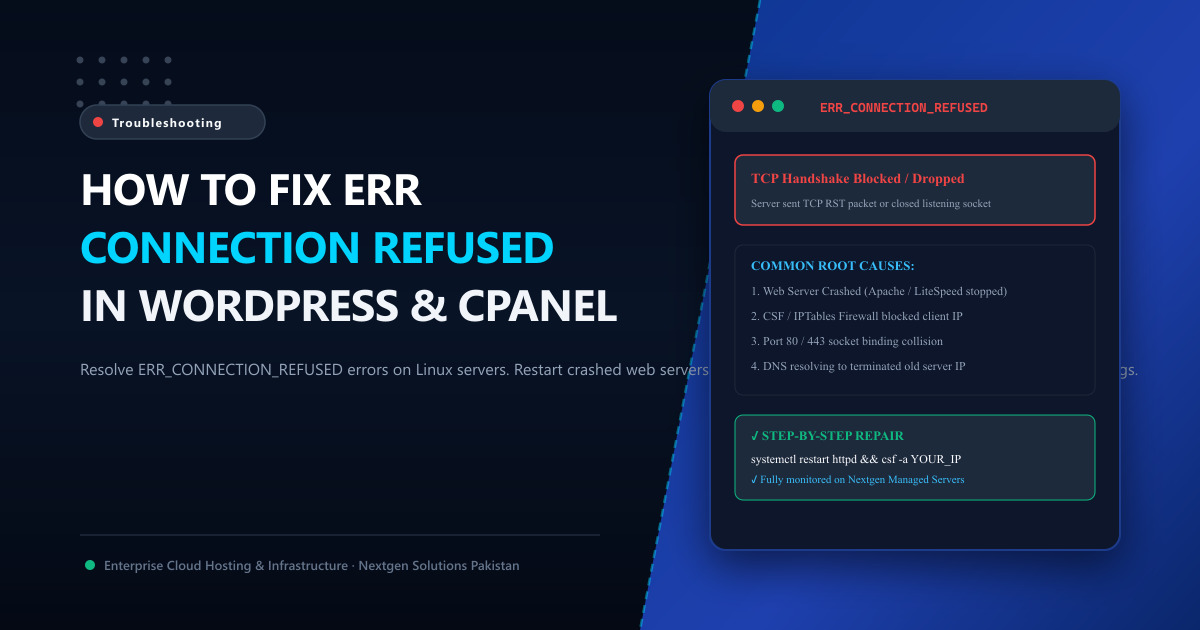
Unlike HTTP status codes like 500 (Internal Server Error) or 504 (Gateway Timeout)—which prove that your browser successfully established a network connection with the destination server—an ERR_CONNECTION_REFUSED error is an immediate network-layer shutdown:
This site can’t be reached
yourdomain.pk refused to connect.
Try checking the connection or checking the proxy and the firewall.
ERR_CONNECTION_REFUSED
When your browser attempts a three-way TCP handshake (SYN) to your website on port 80 (HTTP) or port 443 (HTTPS), the destination server actively responds with a TCP Reset (RST) packet, refusing to open the socket.
In 95% of cases on Pakistani hosting environments, this does not mean the user’s internet is broken—it means the web server daemon has completely crashed, or the server’s security firewall has blacklisted the user’s IP address due to failed login attempts.
In this deep diagnostic guide, we provide the exact terminal commands and cPanel troubleshooting steps to identify why connections are being refused and restore your website immediately.
🔍 The 4 Common Causes of ERR_CONNECTION_REFUSED
[ Visitor Browser ] ────── TCP SYN (Port 443) ─────► [ Server IP: 103.151.111.45 ]
                                                              │
                                                     ❌ TCP RST (CONNECTION REFUSED!)
                                                        - Cause 1: Apache / LiteSpeed is Dead
                                                        - Cause 2: CSF Firewall Dropped Your IP
                                                        - Cause 3: Port Binding Collision
                                                        - Cause 4: Outdated DNS Resolving to Dead IP
🛠️ Step 1: Check If the Web Server (Apache / LiteSpeed) is Dead
If the web server daemon is not running, the Linux kernel has no active process listening on ports 80 or 443. The kernel immediately sends a TCP RST packet back to the client:
SSH into your server and check the status of your web server:
For cPanel / AlmaLinux / CentOS (Apache / EA4):
sudo systemctl status httpdIf it shows inactive (dead) or failed, start it:
sudo systemctl restart httpdFor Ubuntu / Debian (Apache2 / Nginx):
sudo systemctl status apache2   # Or: sudo systemctl status nginx
sudo systemctl restart apache2
For LiteSpeed Web Server:
sudo /usr/local/lsws/bin/lswsctrl status
sudo /usr/local/lsws/bin/lswsctrl restart
🛡️ Step 2: Unblocking Your IP in CSF / LFD Firewall
cPanel servers in Pakistan typically run ConfigServer Security & Firewall (CSF) with Login Failure Daemon (LFD).
If you (or an employee in your office) entered the wrong cPanel, FTP, or SSH password 5 times in a row, or if an email client on an office mobile phone had an outdated email password, CSF will silently blacklist your entire office broadband public IP address!
To you, the website will appear completely dead with ERR_CONNECTION_REFUSED, while visitors on 4G cellular networks can access the site with no problems.
How to Unblock Your IP via Terminal:
Find your public IP (by visiting https://ifconfig.me on your phone/PC) and run:
# Check if your IP is banned in CSF
csf -g YOUR_PUBLIC_IP

# If found, remove from temporary and permanent blocklists:
csf -tr YOUR_PUBLIC_IP
csf -dr YOUR_PUBLIC_IP

# Whitelist your office IP so it is never banned again:
csf -a YOUR_PUBLIC_IP "Office Static Broadband"
csf -r
In WHM GUI:
- Log into WHM (
https://your-server:2087). - Search for ConfigServer Security & Firewall.
- Under Quick Unblock, paste your IP address and click Quick Unblock.
🔌 Step 3: Checking Port 80 / 443 Listening Sockets
If your web server claims it is running but browsers still get connection refused, verify that the daemon is actually bound to the public network interface:
Run:
sudo ss -tulpn | grep -E ":80|:443"Expected Output:
tcp   LISTEN 0 511 0.0.0.0:80    0.0.0.0:* users:(("httpd",pid=1420,fd=4))
tcp   LISTEN 0 511 0.0.0.0:443   0.0.0.0:* users:(("httpd",pid=1420,fd=5))
If you see 127.0.0.1:80 instead of 0.0.0.0:80, your web server is mistakenly bound exclusively to the local loopback adapter rather than your public Ethernet interface! Check your Listen directives in /etc/apache2/ports.conf or /etc/httpd/conf/httpd.conf.
🌐 Step 4: Outdated DNS Pointing to a Terminated Old Server
If you recently migrated your website or changed hosting providers, your local PC or Pakistani ISP (PTCL, Nayatel, StormFiber) may still cache the old server’s IP address where the account was terminated:
Flush DNS on Your PC:
- In Windows: Open Command Prompt as Administrator and run:
ipconfig /flushdns - In macOS: Open Terminal and run:
sudo dscacheutil -flushcache; sudo killall -HUP mDNSResponder
⚡ The Permanent Solution: High-Availability Cloud Infrastructure
Tired of midnight server crashes where Apache dies without explanation or aggressive firewalls block your client’s office IPs?
Upgrading to Nextgen Cloud VPS in Pakistan or enterprise bare-metal Dedicated Servers ensures:
- Proactive Daemon Watchdogs: Automated systemd and Monit services instantly resurrect crashed web daemons within 3 seconds.
- Enterprise LiteSpeed Web Server: Eliminates Apache thread exhaustion and handles 10x higher concurrent visitor traffic.
- Sub-10ms Domestic Latency: Direct peering with the Pakistan Internet Exchange (PkIX) ensures instant TCP handshakes across Islamabad, Lahore, and Karachi.
📚 Related Technical Architecture Guides & Reading
- How to Fix 502 Bad Gateway in Nginx & PHP-FPM: Complete Diagnostic Guide – Resolve crashed PHP worker pools and OOM killer events.
- How to Fix 504 Gateway Timeout Errors in WordPress & cPanel – Tune timeouts, resolve database locks, and fix server performance.
- How to Fix ERR_TOO_MANY_REDIRECTS in WordPress – Solve Cloudflare Flexible SSL loops and broken .htaccess redirects.
Deploy Reliable, Crash-Proof Cloud VPS in Pakistan
Never let your website refuse connections again. Nextgen provides turnkey KVM Cloud VPS and dedicated bare-metal servers equipped with LiteSpeed Enterprise, high-IOPS NVMe storage, and 24/7 sysadmin monitoring in Tier-3 Islamabad datacenters.