
Few error screens strike fear into the heart of a website owner or e-commerce merchant quite like:
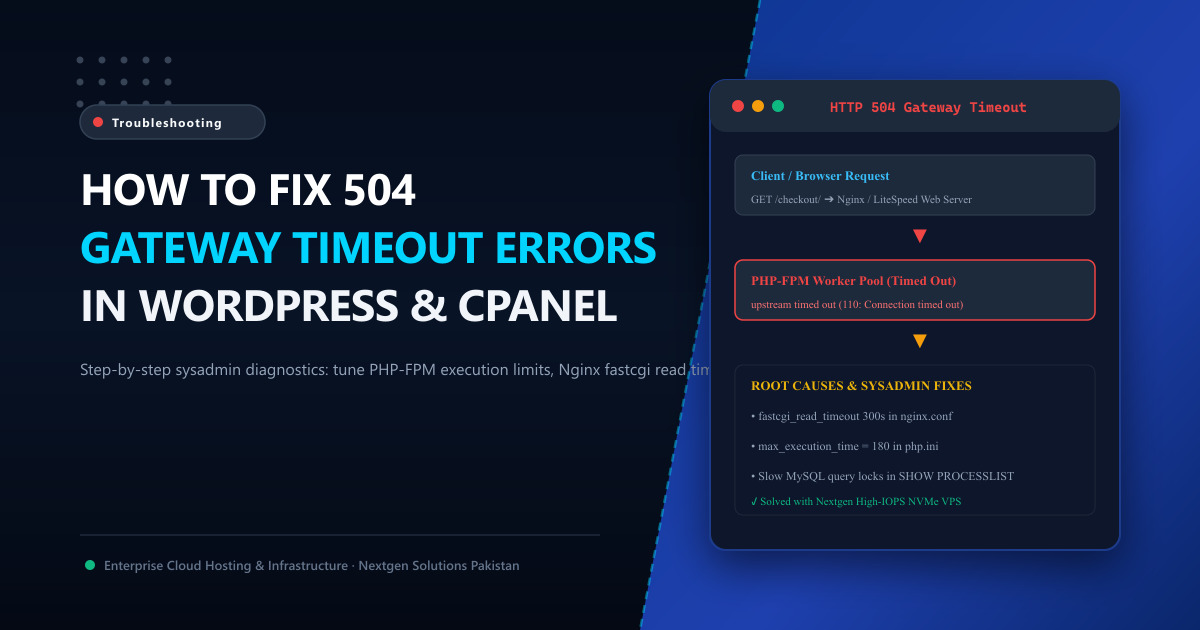
504 Gateway Timeout
The server, while acting as a gateway or proxy, did not receive a timely response from the upstream server it needed to access in order to complete the request.
For a Pakistani e-commerce store during a high-traffic sale or a corporate portal handling peak visitor inquiries, a 504 error means transactions freeze, shopping carts abandon, and potential clients bounce immediately to competitors.
Unlike 404 (Not Found) or 403 (Forbidden) errors which are immediate client-side or permission faults, a 504 Gateway Timeout is an infrastructure-level breakdown. It occurs when your frontend web server (Nginx, Apache, or LiteSpeed) opens a connection to an upstream backend worker (such as PHP-FPM or MySQL), but the backend worker fails to return a response before a preconfigured timeout threshold expires.
In this deep diagnostic guide, we dissect the root causes of 504 Gateway Timeouts and provide the exact configuration lines in cPanel, Nginx, LiteSpeed, and MySQL to resolve them permanently.
🔍 The Anatomy of a 504 Gateway Timeout
To fix the issue, you must understand the request journey:
[ Browser / Visitor ]
       │
       ▼ (HTTP GET /cart/)
[ Frontend Proxy: Cloudflare / Nginx / LiteSpeed ]
       │
       ▼ (Passes request to upstream)
[ Backend Worker: PHP-FPM 8.3 / LSAPI Engine ]
       │
       ▼ (Executes SQL queries)
[ Relational Database: MariaDB / MySQL ]
When a visitor requests a heavy WordPress page (like generating a dynamic report or processing a complex WooCommerce checkout):
- The web server forwards the request to PHP-FPM.
- If PHP takes longer than
fastcgi_read_timeout(usually 60 seconds by default), the web server gives up waiting. - The frontend proxy severing the connection returns a
504 Gateway Timeoutback to the browser.
🛠️ Step 1: Increasing PHP Execution Time in cPanel & php.ini
The most common trigger of 504 errors on WordPress is a script hitting the default 30-second or 60-second PHP execution ceiling:
In cPanel (MultiPHP INI Editor):
- Log into your cPanel account.
- Navigate to Software ➔ MultiPHP INI Editor.
- Select your active domain and locate
max_execution_time. - Increase the value from
30to300(5 minutes). - Also ensure
memory_limitis set to at least256M(or512Mfor heavy WooCommerce stores).
; Production php.ini Tuning for Heavy Dynamic CMS
max_execution_time = 300
max_input_time = 300
memory_limit = 512M
post_max_size = 64M
upload_max_filesize = 64M
🌐 Step 2: Tuning Web Server Proxy Timeouts (Nginx & LiteSpeed)
Even if your PHP script is allowed to run for 300 seconds, if Nginx or LiteSpeed drops the proxy connection after 60 seconds, you will still receive a 504 error.
For Nginx Reverse Proxy (/etc/nginx/nginx.conf or virtual host block):
Open your Nginx configuration and add or increase the timeout directives inside your http { ... } or location ~ \.php$ { ... } block:
# Increase FastCGI timeouts to allow complex scripts to complete
fastcgi_connect_timeout 300s;
fastcgi_send_timeout 300s;
fastcgi_read_timeout 300s;

# If using Nginx as a reverse proxy in front of Apache/NodeJS
proxy_connect_timeout 300s;
proxy_send_timeout 300s;
proxy_read_timeout 300s;
Test and reload Nginx:
sudo nginx -t && sudo systemctl reload nginxFor LiteSpeed Web Server / OpenLiteSpeed:
- In LiteSpeed WebAdmin Console, navigate to Server Configuration ➔ External App.
- Select your PHP external application (e.g.,
LiteSpeed SAPI App). - Set Connection Timeout (secs) to
300. - Set Initial Request Timeout (secs) to
300. - Perform a graceful restart of LiteSpeed.
🗄️ Step 3: Killing Stuck MySQL Table Locks & Long-Running Queries
Often, PHP is not stuck on computational logic—it is blocked waiting for MySQL to release a row or table lock!
To see if MySQL is causing your 504 errors, SSH into your server and run:
mysql -u root -p -e "SHOW FULL PROCESSLIST;"Look for queries with high Time values (e.g., Time: 180) and a state like:
LockedWaiting for table metadata lockCopying to tmp table
If a runaway plugin query is freezing all subsequent worker threads, kill the offending thread using its Process ID:
KILL 14829;[!TIP] If your database constantly locks under concurrent traffic, check out our guide on Optimizing MariaDB Database Latency on Linux Servers.
☁️ Step 4: Cloudflare 504 Errors (Error 524 vs 504)
If your website uses Cloudflare CDN, you will see two variations:
- Cloudflare Branded Error 524 (A Timeout Occurred): Cloudflare successfully connected to your origin server, but your origin took longer than 100 seconds to respond. This confirms the issue is on your origin server (PHP or MySQL).
- Generic 504 Gateway Timeout: The timeout occurred on an upstream proxy between Cloudflare and your origin, or Cloudflare’s edge could not establish a TCP handshake.
🚀 When Hardware Upgrades Are the Real Solution
If you frequently optimize configurations but your WooCommerce site still throws 504 errors every time 50 concurrent shoppers add items to their carts, you are hitting the physical limits of shared hosting.
Shared hosting servers enforce strict CloudLinux LVE CPU caps (often limited to 1 vCPU and 20 concurrent entry processes). Once those 20 worker slots fill up, every new request is queued until it times out.
Upgrading to Cloud VPS in Pakistan or bare-metal Dedicated Servers solves this instantly:
- Dedicated PHP-FPM Workers: Run 50 to 200+ concurrent PHP worker processes simultaneously.
- Enterprise NVMe Throughput: Fast read/write performance prevents MySQL queries from queueing on disk I/O bottlenecks.
- Sub-10ms Local Network: Direct peering with the Pakistan Internet Exchange (PkIX) eliminates network routing latency.
📚 Related Technical Architecture Guides & Reading
- Best PHP Version for WordPress Performance: PHP 8.3 vs 8.2 Benchmarks – Accelerate PHP execution by up to 40% with JIT compilation.
- LiteSpeed Cache & Redis Object Caching for WordPress – Eliminate repeated dynamic PHP execution with in-memory caching.
- How to Use cPanel to Manage Your Web Hosting – Complete practical guide to cPanel configuration, error logs, and php.ini tuning.
Eliminate 504 Gateway Timeouts with High-Performance Cloud VPS
Stop losing customers to server timeouts. Nextgen deploys unthrottled KVM Cloud VPS and dedicated bare-metal servers with LiteSpeed Enterprise, high-IOPS NVMe storage, and 24/7 sysadmin monitoring in Tier-3 Islamabad datacenters.