
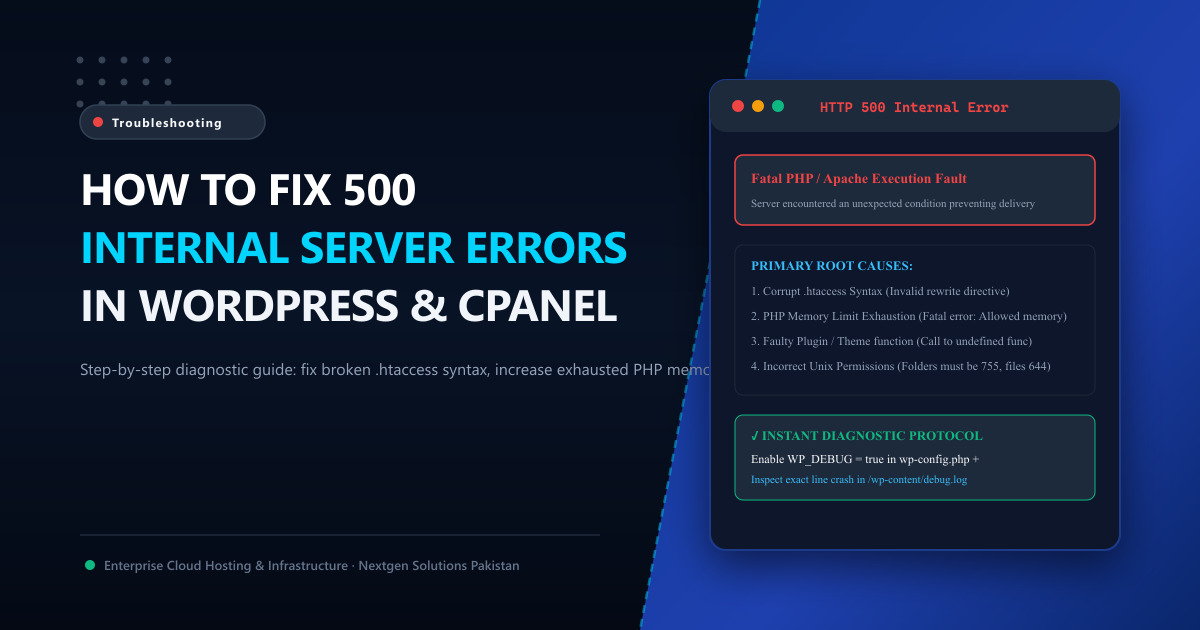
Nothing causes more panic for webmasters, digital agencies, and e-commerce store owners in Pakistan than opening your site and seeing: “HTTP 500 Internal Server Error” or “There has been a critical error on this website.”
Unlike a 404 Not Found error which tells you exactly what went wrong (a missing URL), the 500 Internal Server Error is a generic Catch-All response. The web server (Apache, LiteSpeed, or Nginx) knows that something fundamentally broke during the PHP execution process, but it cannot tell the front-facing visitor what happened for security reasons.
In this comprehensive, production-grade guide, we walk you through the battle-tested diagnostic procedure used by enterprise sysadmins to isolate and resolve 500 errors in under 10 minutes.
🔍 Root Causes of the WordPress 500 Internal Server Error
Before running random commands or modifying code, understand where 500 errors originate:
| Root Cause | Technical Trigger | Typical Fix Location |
|---|---|---|
Corrupted .htaccess File |
Syntax error, bad rewrite rule, or invalid module directive | Root web directory (/public_html/.htaccess) |
| PHP Memory Limit Exhaustion | A heavy WooCommerce query or page builder script hits memory ceiling | wp-config.php or php.ini (memory_limit) |
| Faulty or Incompatible Plugin | Fatal PHP exception, namespace collision, or PHP 8.x incompatibility | wp-content/plugins/ directory or WP-CLI |
| Corrupted WordPress Core Files | Interrupted automated update or infected core script | Replace /wp-admin/ and /wp-includes/ |
| Incorrect File/Folder Permissions | Web server process cannot read or execute PHP scripts | Reset directory permissions to 755 and files to 644 |
| PHP-FPM Worker Pool Crash | Max children reached, socket permission error, or segfault | /etc/php/8.3/fpm/pool.d/www.conf |
🛠️ Step 1: Enable WordPress Debug Mode (WP_DEBUG)
To stop guessing and see the exact line of code triggering the fatal error, enable WordPress debugging.
Open your wp-config.php file via cPanel File Manager, FTP, or SSH:
// Find this line (usually false by default):
define('WP_DEBUG', false);

// Replace it with the following debugging block:
define('WP_DEBUG', true);
define('WP_DEBUG_LOG', true);
define('WP_DEBUG_DISPLAY', false);
@ini_set('display_errors', 0);
Why set WP_DEBUG_DISPLAY to false?
Setting WP_DEBUG_DISPLAY to false prevents your database passwords, file paths, and server vulnerabilities from leaking onto the public browser screen. Instead, all errors will be written silently to a private log file located at:
/public_html/wp-content/debug.logYou can view the latest errors in real time via SSH:
tail -n 50 -f /var/www/html/wp-content/debug.logIf the log displays a Fatal error: Allowed memory size of... exhausted or Parse error: syntax error... in /wp-content/plugins/..., you instantly know your culprit!
🛠️ Step 2: Check for a Corrupted .htaccess File
On Apache and LiteSpeed web servers, a corrupted or malformed .htaccess file is the #1 cause of sudden 500 internal server errors.
How to test:
- Log into your cPanel and open File Manager (or connect via SSH/SFTP).
- Ensure “Show Hidden Files (dotfiles)” is enabled in File Manager settings.
- Locate the
.htaccessfile in your root folder (/public_html/). - Rename it to
.htaccess.bak:mv .htaccess .htaccess.bak - Reload your website in an incognito window.
If your site loads immediately, your .htaccess was corrupted! To regenerate a clean .htaccess file, log into your WordPress Dashboard, navigate to Settings > Permalinks, and click Save Changes.
WordPress will automatically generate standard rewrite rules:
# BEGIN WordPress
<IfModule mod_rewrite.c>
RewriteEngine On
RewriteRule .* - [E=HTTP_AUTHORIZATION:%{HTTP:Authorization}]
RewriteBase /
RewriteRule ^index\.php$ - [L]
RewriteCond %{REQUEST_FILENAME} !-f
RewriteCond %{REQUEST_FILENAME} !-d
RewriteRule . /index.php [L]
</IfModule>
# END WordPress
🛠️ Step 3: Increase PHP Memory Limit
If your website runs resource-intensive plugins like WooCommerce, Elementor, WPML, or Yoast SEO, your PHP memory limit may be exceeded during background tasks or checkout calculations.
Method A: Edit wp-config.php
Add the following line right above /* That's all, stop editing! Happy publishing. */:
define('WP_MEMORY_LIMIT', '512M');
define('WP_MAX_MEMORY_LIMIT', '1024M');
Method B: Edit php.ini or .user.ini
If you have access to your server or cPanel MultiPHP INI Editor, ensure these directives are configured:
memory_limit = 512M
upload_max_filesize = 128M
post_max_size = 128M
max_execution_time = 300
max_input_time = 300
On Nextgen Cloud VPS in Pakistan, you have full root SSH access to tune /etc/php/8.3/fpm/php.ini without restrictive shared hosting limits that cap memory at 128MB.
🛠️ Step 4: Deactivate Faulty Plugins & Switch to Default Theme
If a recent plugin update or theme conflict broke your site:
Via WP-CLI (Fastest method via SSH):
# Deactivate all active plugins instantly
wp plugin deactivate --all --path=/var/www/html

# Check if site loads. If it does, reactivate plugins one by one:
wp plugin activate litespeed-cache
wp plugin activate woocommerce
Via cPanel File Manager:
- Navigate to
/public_html/wp-content/. - Rename the
pluginsfolder toplugins_old. - Refresh your website. If the 500 error disappears, one of your plugins is faulty.
- Rename the folder back to
plugins, open it, and rename individual plugin folders one by one until you isolate the broken plugin.
🛠️ Step 5: Fix File & Folder Permissions
Incorrect Unix permissions can prevent the web server user (www-data, nobody, or your cPanel username) from executing PHP files.
The strict standard for WordPress security and stability is:
- Directories:
755(drwxr-xr-x) - Files:
644(-rw-r--r--) wp-config.php:600or640
Run these commands from your WordPress root via SSH:
# Set directory permissions to 755
find /var/www/html/ -type d -exec chmod 755 {} \;

# Set file permissions to 644
find /var/www/html/ -type f -exec chmod 644 {} \;

# Ensure web server ownership (Ubuntu/Debian Nginx)
chown -R www-data:www-data /var/www/html/
Never set permissions to 777! Doing so creates severe security risks and triggers automatic execution blocks in modern security modules like suPHP and CloudLinux CageFS.
🛠️ Step 6: Reinstall Clean WordPress Core Files
If a core update failed midway, vital PHP files in /wp-admin/ or /wp-includes/ may be truncated or corrupted.
Reinstall clean core via WP-CLI:
wp core download --skip-content --force --path=/var/www/htmlThis overwrites all system files in /wp-admin/ and /wp-includes/ with fresh copies straight from wordpress.org without touching your /wp-content/ folder, database, or themes!
🏢 Why High-Traffic WordPress Sites Need Dedicated Infrastructure
Shared hosting environments bundle hundreds of websites onto a single server. When another tenant on the server experiences a traffic spike or runs unoptimized MySQL queries, your site suffers from CPU starvation, thread exhaustion, and intermittent 500 errors.
Migrating to Nextgen Dedicated Servers in Pakistan or enterprise Dedicated Servers guarantees:
- 100% Dedicated Hardware Resources: Zero noisy neighbors. Unthrottled AMD EPYC and Intel Xeon processors.
- Enterprise NVMe Storage: Sub-millisecond disk read/write latencies to process thousands of database operations per second.
- Local PkIX Islamabad Peering: Direct routing to PTCL, Nayatel, StormFiber, and mobile operators, cutting visitor latency down to under 10ms.
📚 Related Troubleshooting Guides & Reading
- Fix 502 Bad Gateway: Nginx & PHP-FPM Troubleshooting Guide – Resolve gateway communication errors between web server and backend.
- Fix 504 Gateway Timeout in WordPress: Nginx, LiteSpeed & cPanel – Stop long-running PHP scripts from timing out.
- How to Fix ERR_CONNECTION_REFUSED in WordPress & cPanel – Troubleshoot crashed web server services and blocked ports.
Eliminate WordPress 500 Internal Server Errors Forever
Tired of shared hosting resource throttling and random downtime? Nextgen Cloud VPS and Dedicated Servers provide dedicated CPU cores, NVMe storage, and pre-optimized LiteSpeed/Nginx stacks engineered for high-concurrency WordPress & WooCommerce.